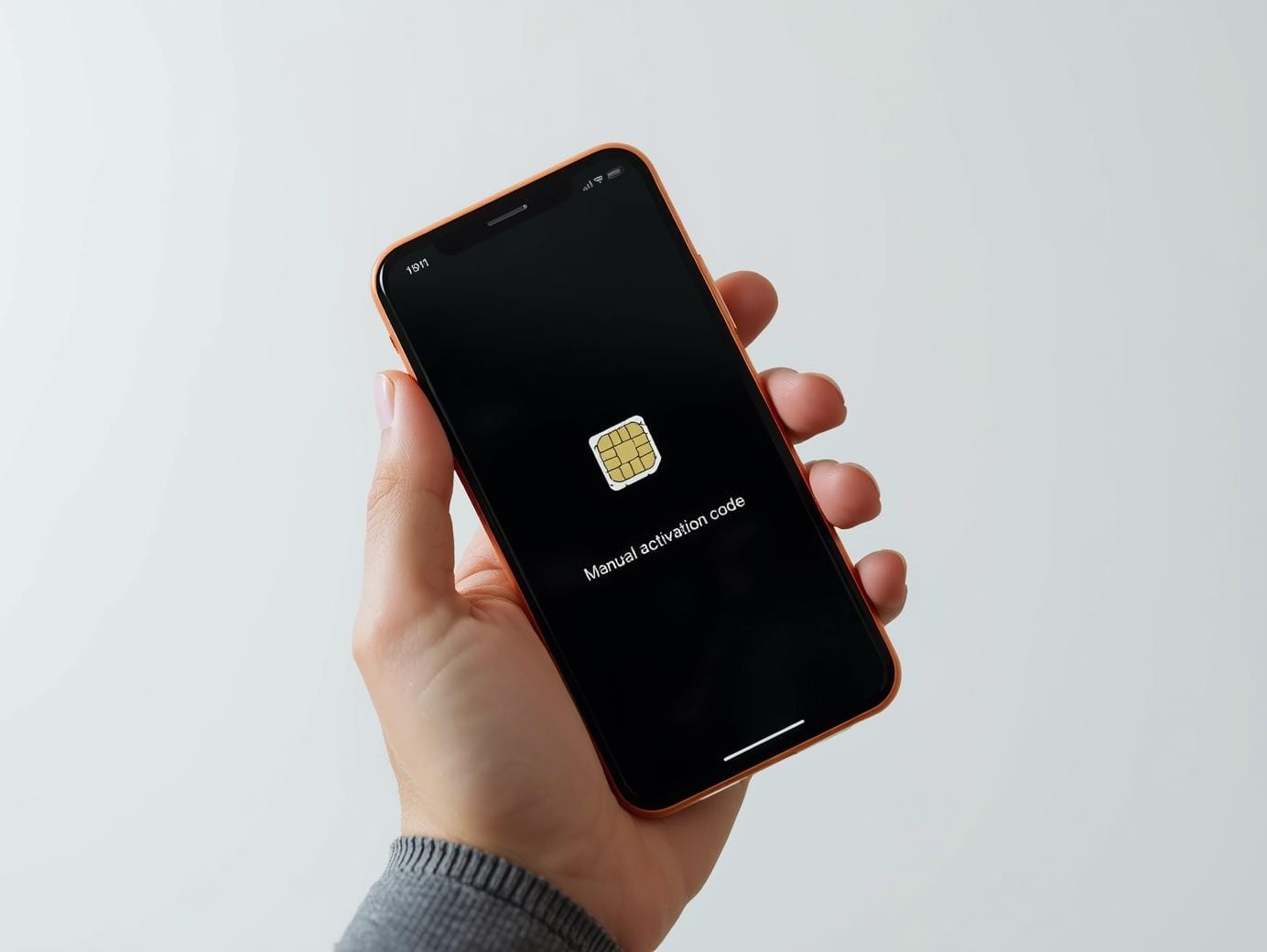
Follow these steps to get your activation code from Worldcitisim:
If you can’t scan the QR code for your eSIM, or simply prefer another method, you can activate it by typing in a Manual Activation Code directly on your phone.
- Order your eSIM from Worldscitisim.
- Open the email from Worldcitisim called “Here is your eSIM”.
- Find your code called “Manual activation code”.
- For Android phones, use the whole code that follows.
- For iPhone, use only the last part that starts with “TN”.
How to use the Manual Activation Code
iOS / iPhone
- Open Settings on your iPhone.
- Go to Mobile / Cellular / Mobile Service (the name can vary slightly).
- Under Mobile/Cellular Plans, tap Add eSIM – the camera screen will appear.
- At the bottom of that screen, tap Enter Details Manually.
- Type in the SM-DP+ address, which is the part of the activation code that looks like: “consumer.e-sim.global“
- Enter the Activation Code from your account. For iPhone, use only the last part that starts with “TN”.
- Leave the Confirmation Code field empty (it’s not needed).
- Tap Next in the top-right and follow the on-screen steps to complete the installation.
If you see a message like “Unable to activate eSIM”, it can mean the eSIM is already installed on your phone.
Android 13 / Google Pixel
- Open Settings on your phone.
- Go to Network & Internet.
- Tap SIMs (or similar), then tap the + icon to add a SIM.
- Choose Download a SIM instead? or Set up an eSIM.
- When the message appears, tap Yes, then Next – the camera screen will open.
- Tap Need help? or Try these troubleshooting steps.
- On the “Help adding a network”/ Fix QR code problems screen, tap Enter the details manually.
- Type in the Manual Activation Code exactly as it appears in your email from Worldcitisim.
- Follow the prompts to confirm and add the new data plan.
If you don’t see these options
If your phone doesn’t offer any option to enter eSIM details manually (or to add / download an eSIM), it most likely does not support eSIM.
In that case, contact support so we can help you cancel or refund your order. Contact us at [email protected]